You must complete ALL steps in this section to commence your program.
Step 1: Equipment Requirements
Every student must bring with them a Windows or Apple Mac laptop (NOT an iPad, Android tablet, or Chromebook) to Orientation Day which is:
- is less than 4 years old,
- is running at least Windows 10, or macOS Big Sur (version 11.0) in English,
- has Office 365 installed in English,
- has Google Chrome installed in English (you can download this on arrival) and,
- has Microsoft .NET Framework 3.5 installed (Windows only).
To see the Personal Electronic Device Guidelines, click here.
If you are studying a subject that requires a calculator, ensure you have an approved calculator which can be purchased at any Officeworks, JB Hi-Fi, or online:
- Fx-82AU plus II (and older models)
- Fx-82AU plus II 2nd edition
Please note that using a calculator other than the above approved models will not allowed.
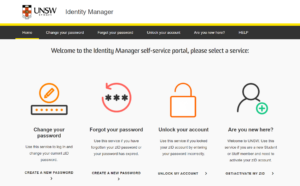
Step 2: Activate Your zID
zID is your unique student ID number when you study at UNSW College.
You can activate your zID here: https://iam.unsw.edu.au/home
Not sure about your zID?
Your zID will be emailed to you before your Orientation Day. It will be sent to the personal email address which was used for your College application. If you still have not received your zID one week before your Orientation Day, please contact [email protected] and include your full name and cID.
Step 3: Set Up Your Student Email
Please sign in HERE to Outook using the information below:
- Your Username: [email protected] (eg. [email protected])
- Your Password: Your zID password
Email is the main way that UNSW staff communicate with students. We will email you about course information, exams, enrolment and of course, lots of exciting opportunities for you to join!
Step 4: Set Up Multi Factor Authentication (MFA)
Multi-Factor Authentication (MFA) is a requirement at UNSW for everyone with a current zID account. MFA is a multi-step account login process that requires users to enter an additional code on top of their password. This provides an additional layer of security to help protect the University and your account from unauthorised access.
Our University uses the Microsoft Authenticator app, which needs to be installed on your smartphone before completing the MFA registration on your computer. Once set up, Microsoft Authenticator will periodically send you codes to verify your sign-in to single sign-on (SSO) applications such as Outlook, Moodle, and SharePoint.
Follow the instructions in the ‘Set Up MFA’ section on this page.
Important: Do not delete the MFA once you have set it up. If you delete the MFA or get a new device, you will need to call UNSW IT to reset it. For MFA technical issues and assistance contact the IT Service Centre on (02) 9385 1333 and select MFA from the options.
Step 5: Create a Unique Student Identifier (USI)
All students must have a USI in order to successfully graduate from their Diploma program and transition to UNSW Sydney.
Once you have your 10 digit USI follow these steps:
- Login to myUNSW.
- Click on ‘My Student Profile’.
- Click on Unique Student Identifier under ‘Personal Details’.
- Enter your 10 digit USI.
Please do not forget your USI. Keep this number noted somewhere safe and secure because you will need it when you transition over to the main UNSW campus.
Step 6: Get Enrolled in Classes
You have already been enrolled in your first term course, either DPGE1001 Communication and Academic Literacy 1 or DPGE1004 Communication and Academic Literacy 4, depending on eligibility.
Communication and Academic Literacy 4 (DPGE1004) is an accelerated English course. This course encompasses the content of DPGE1001, DPGE1002, and DPGE1003; however, instead of completing these three courses separately over three terms, students who meet the requirements will be enrolled into DPGE1004 and complete it within a single term.
If you are a new student who has not logged into myUNSW previously, please follow these steps below:
You will need to have activated your zID, as part of the ‘Accept Online Part 2’ process.
- As a Diploma student, you will be given access to myUNSW.
- Select the sign-on option where you will need to enter your UNSW zID and password.
- You can follow the enrolment guide here.
Once you have logged into your myUNSW, please click on ‘Class timetable’ under the enrolments heading and you will be able to view your timetable. You can also click here if you need help deciphering your course codes and locations in your timetable.
If you have any questions about your enrolment, please contact the UNSW College Diploma Enquiry Team at [email protected]
Step 7: Access Your UNSW Moodle Account
Moodle is your online learning platform where you will find all your UNSW course information, class materials, assignment outlines, exam details and your teacher’s contact information.
Log in using your [email protected] (e.g. [email protected]). When logging in, you will also receive a MFA notification on your smart phone that you must approve.
If you have any login problems with Moodle please email the UNSW College IT Team at [email protected]
In your email, please include your zID, describe in as much detail as you can the issues you are having with Moodle, and include screenshots where possible.
Step 8: Make A Student ID Card Appointment
Students must carry their UNSW student ID card at all times. You can use your student ID card to register attendance at classes and exams, access the library and borrow resources, join clubs and societies, get discounts, and so much more!
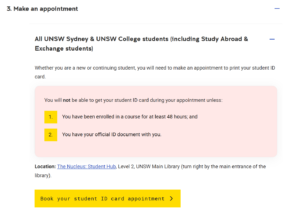
Click here to book your student ID card appointment.
Please scroll down the page to open up Step 3 “Make an appointment” and click on the yellow button “Book your student ID card appointment”.
We highly recommend you to take a photo of your student ID card when you receive it, in case you lose it and need to show proof of identification.
Step 9: Have you connected with your new classmates in your Buddy Group?
You have been automatically enrolled in the College Buddy Program and placed in a group with other new students. This is designed to help you settle in more quickly, get help with any questions, and most importantly make new friends!
If you do not know how to find your Buddy Group, please visit the Buddy Program Booth on your Orientation Day.