
This guide explains how to pay a UNSW College invoice through the Student Portal using Flywire.
Follow the steps below to complete your payment online.
Before you start
Make sure you have:
- Your zID and password for single sign-on
- Access to the Student Portal
- Your bank card or bank account details
- Your student cID (You can find this in the Profile section of the Student Portal)
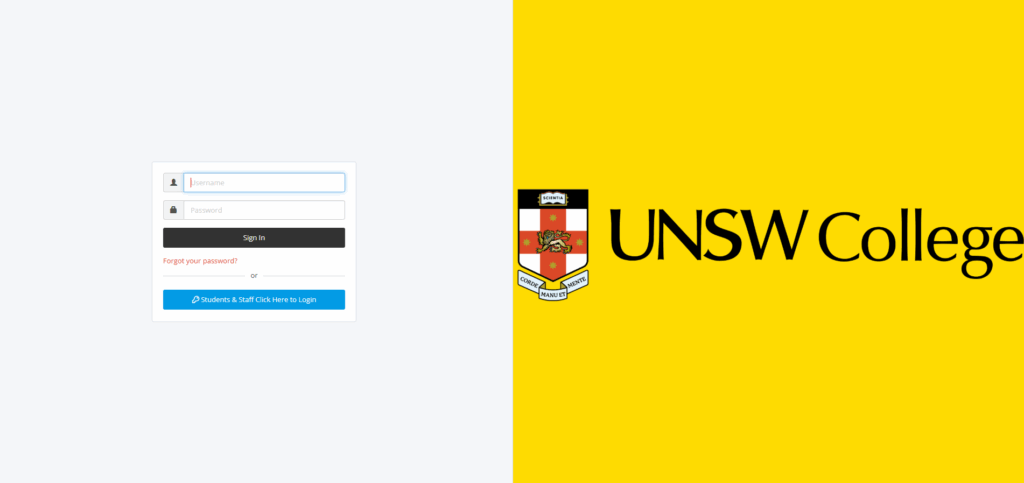
Step 1 – Log in to Student Portal
- Go to the Student Portal.
- Log in using your zID and single sign-on details.
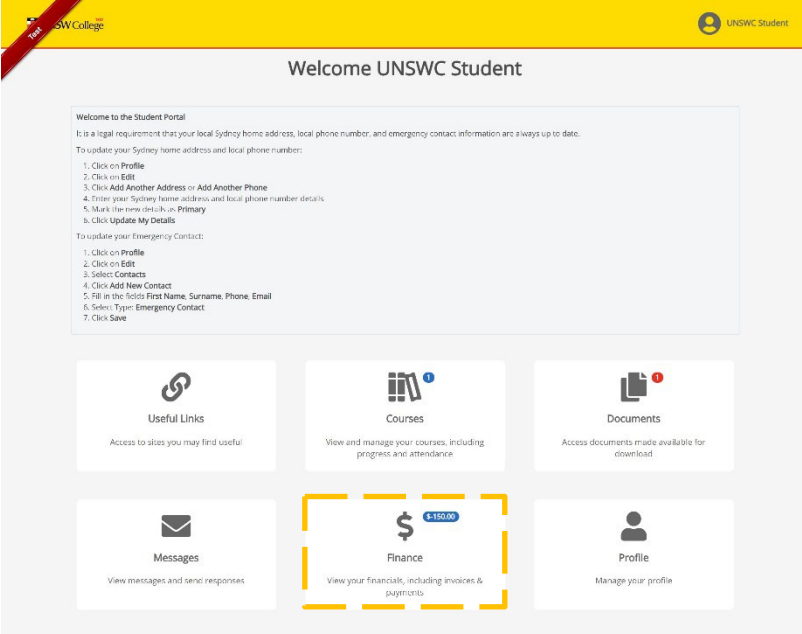
Step 2 – Open the Finance section
From the home screen, click on the Finance tile.
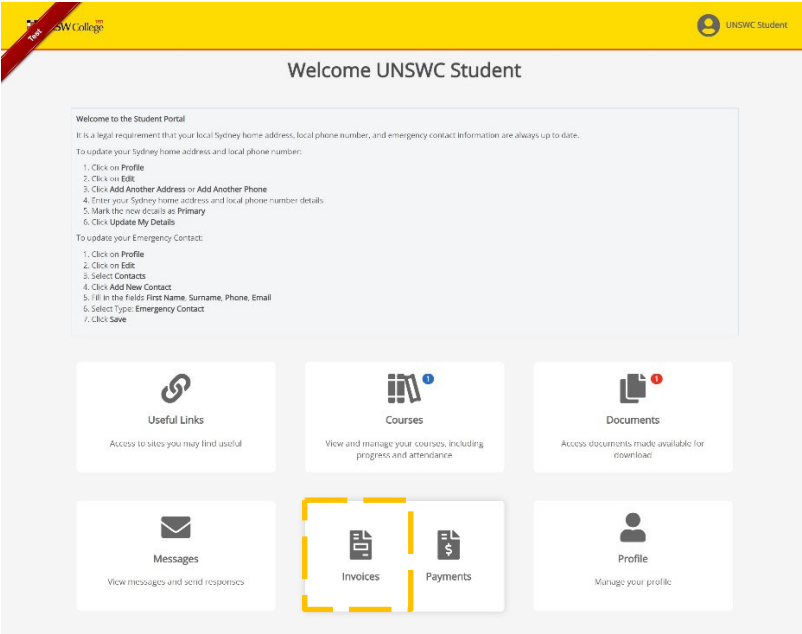
Step 3 – Go to Invoices
On the Finance page, click on the Invoices tile.
Step 4 – Select the invoice to pay
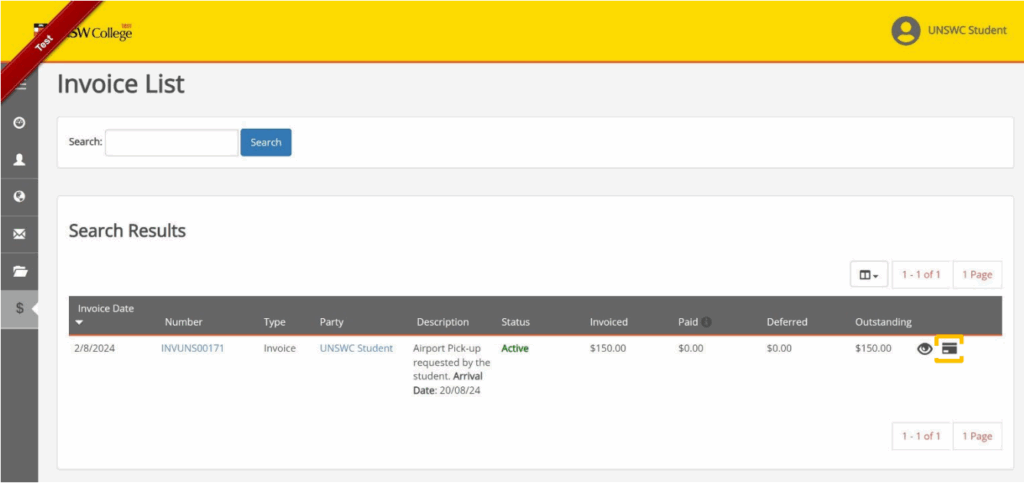
- In your Invoice List, find the invoice you wish to pay.
- Click on the card icon next to the invoice to start the payment.
Step 5 – Confirm the amount and select Pay Now
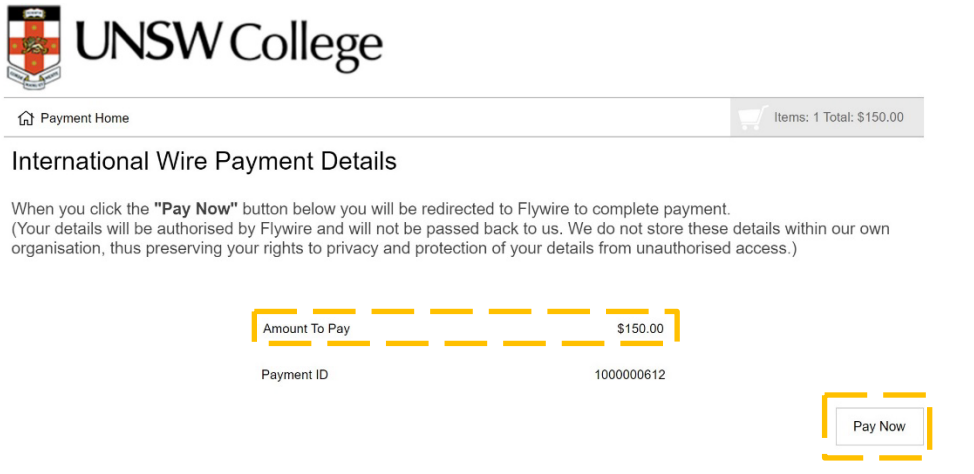
- Check that the Amount To Pay is correct.
- When you are ready to proceed, click Pay Now.
Step 6 – Choose the country or region
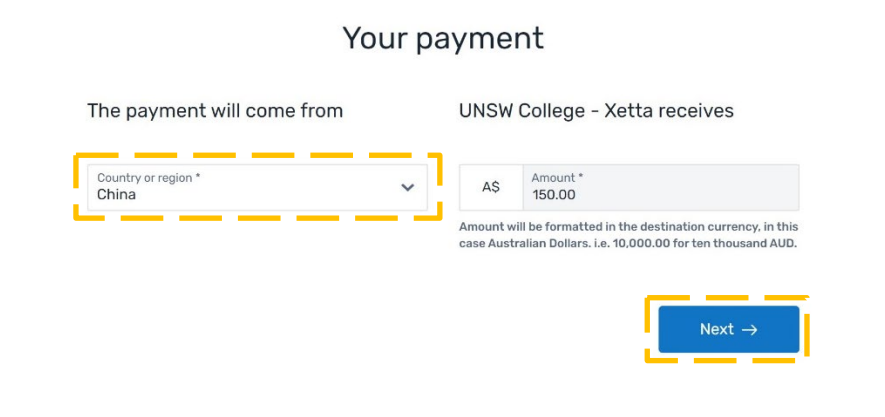
Under Your payment, select the Country or region of the payment method you will be using.
- If you are using an Australian bank account or Australian debit/credit card, select Australia as the country or region.
Click Next to continue.
Step 7 – Select your payment method
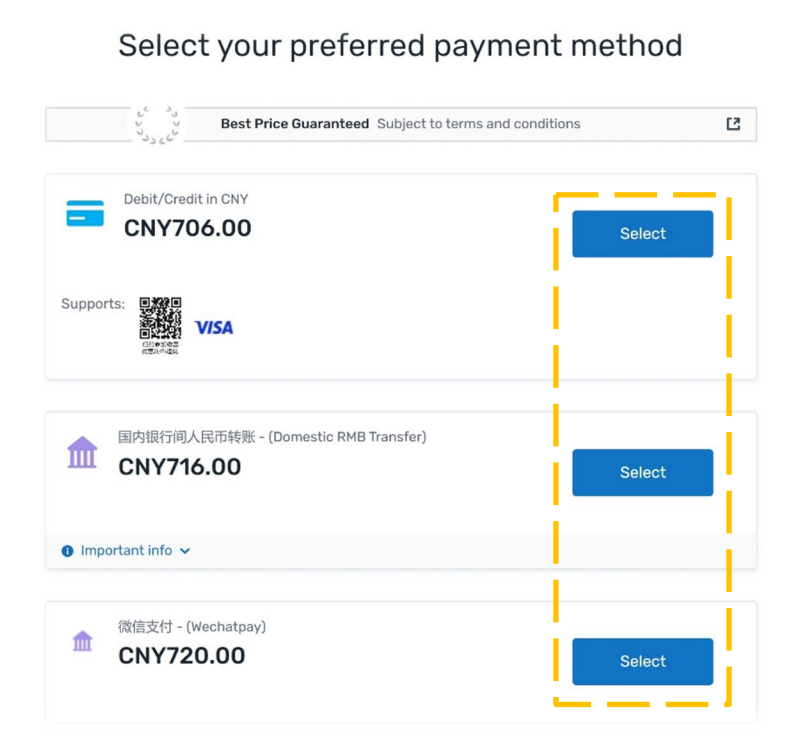
Choose your preferred payment method from the options provided (for example, bank transfer, debit/credit card, or other available methods).
Follow the on-screen prompts and then click Next.
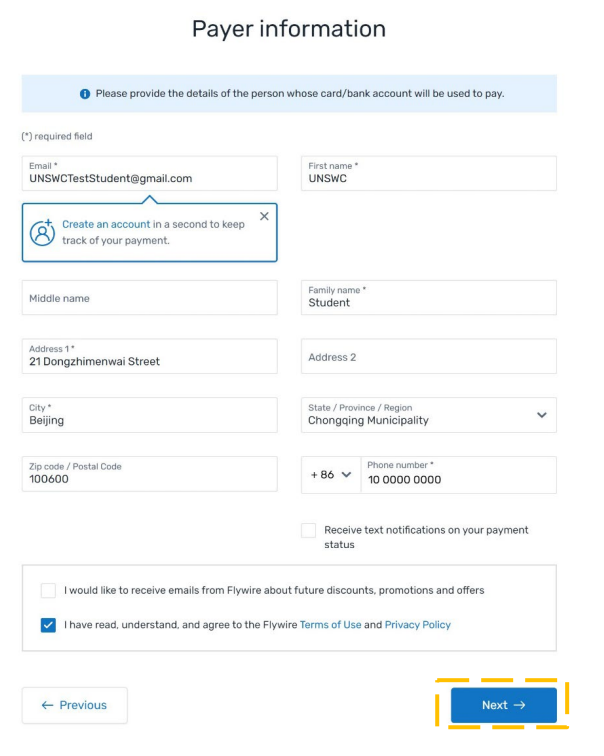
Step 8 – Enter payer details
Enter the payer information (the person whose card or bank account will be used):
- Email address
- Name
- Address
- Phone number
- Any other required details
Note:
If you have previously made a payment through StudyLink and Xetta and the payer is the same person, you can use the same account.
If not, use a personal email address and not your zID email.
When all details are correct, click Next.
Step 9 – Enter student information
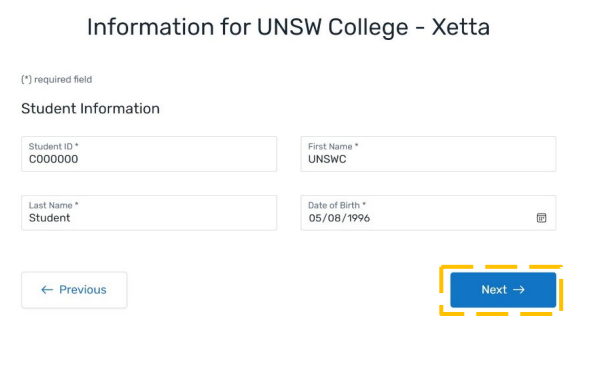
Enter your student information:
- Student ID (cID)
- First name
- Last name
- Date of birth
Your cID can be found in the Profile section of the Student Portal.
Click Next to continue.
Step 10 – Review and confirm your details
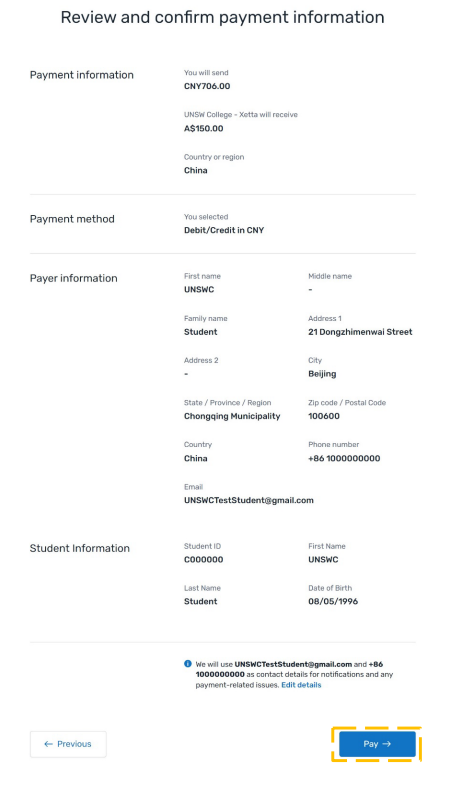
Review all the details on the Review and confirm payment information page:
- Payment information
- Payment method
- Payer information
- Student information
If everything is correct, click Pay.
Step 11 – Enter payment details
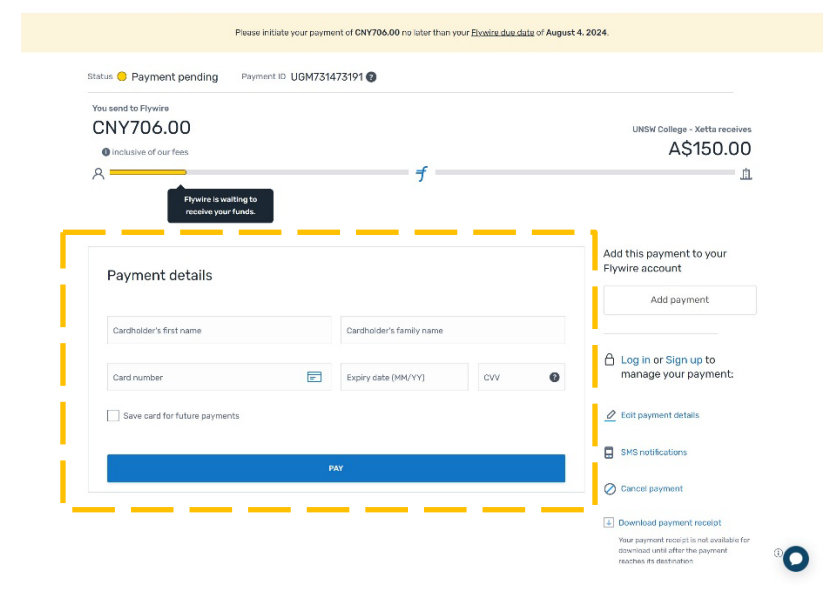
- Enter your payment details for the method you selected (for example, card number, expiry date, security code, or bank account details).
- Click Pay to submit your payment.
Step 12 – Payment processing and confirmation
Once submitted, your payment has been made.
Please note:
- Payments may take several days to show as confirmed while Flywire receives the funds from your bank.
- You can return to the Invoices section in the Student Portal later to check the status of your payment.