

With the recent upgrade of Allocate plus comes a new interface. This guide explains how to navigate the new Allocate Plus dashboard.
Student Dashboard
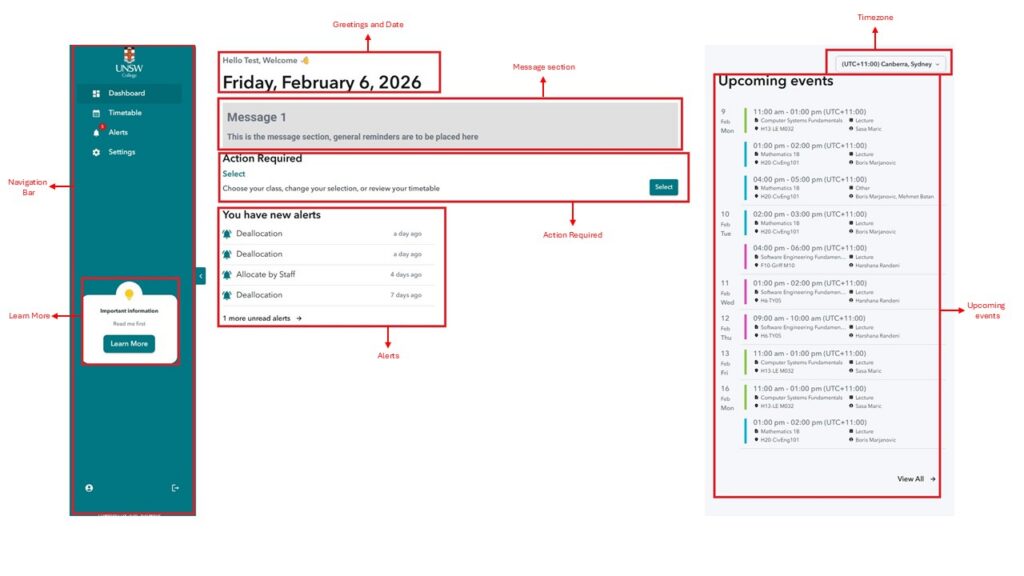
- Navigation Bar – The navigation bar is the main menu where you can access all areas of Allocate Plus, including your timetable, alerts, and settings.
- Learn More – This section contains additional information about using Allocate Plus.
- Student Name and ID – This displays your first and last name and your student zID.
- If you have a Preferred Name recorded (for example an English name), it will replace your first name here.
- Greeting and Date – These are fixed areas that show a greeting and the current date.
- Message Section – Important messages from the system will appear here.
- Always check this section in case there are updates about your timetable.
- Action Required – This section shows whether you need to take action.
- If you need to choose or adjust your classes, you will see a Select option.
- If no action is required, it will show No action required.
- Alerts – This section displays notifications about timetable changes, such as:
- Being allocated to a class
- Being deallocated from a class
- Timezone Dropdown – The default timezone is Sydney, but you can change it if you are in another location.
- Upcoming Events – This section displays your current and upcoming classes.
Student Timetable
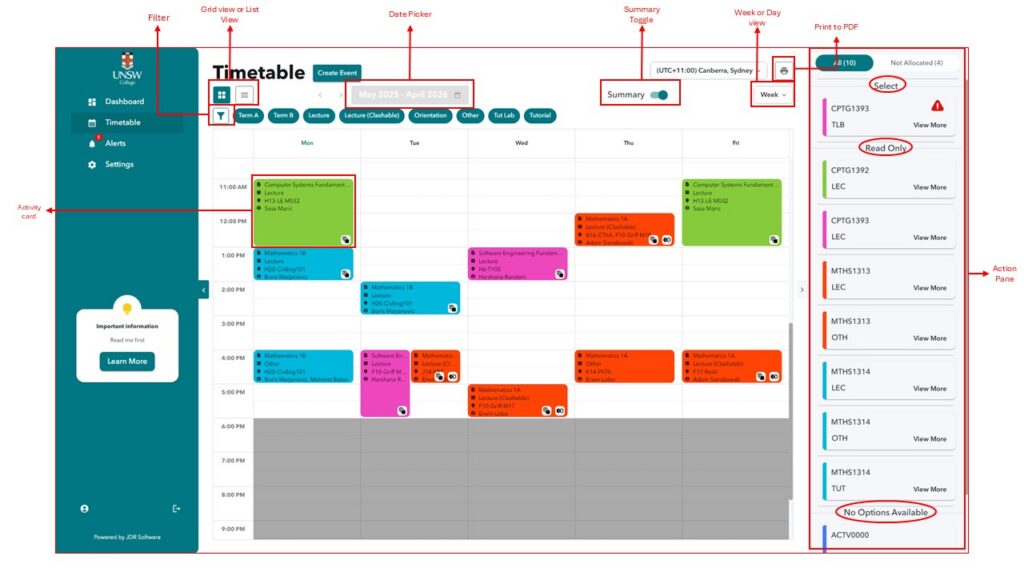
- Grid or List View – Switch between Grid View or List View depending on how you prefer to see your timetable.
- Filter – You can filter what appears in your timetable by Semester or Class type
- Summary toggle – This setting changes how your timetable is displayed.
- ON – Shows all your classes across all terms.
- OFF – Shows only the current week and allows you to use the Date Picker.
- Date picker – When the Summary Toggle is OFF, you can use the Date Picker to choose a specific date and view the classes scheduled for that day..
- Week or Day View – Change your timetable view to Week view or Day View
- Print to PDF – This option allows you to download or print your timetable as a PDF.
- Action Pane – The Action Pane shows all subjects you are enrolled in.
- Action Pane has 3 sections
- Select – Allows you to choose your preferred schedule for certain classes.
- Read Only – You can view information about the class, but you cannot change it.
- No Options Available – No additional information or selections are available for this class.
- Action Pane has 3 sections
Activity Cards (Class Cards)
- Activity cards are the class cards you can see in the timetable
- At first glance, the activity card will show:
- Subject Description
- Activity Type (lecture, tutorial, etc.)
- Location
- Staff
- Click the activity card to open more information.
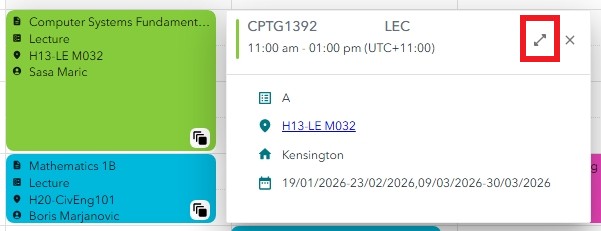
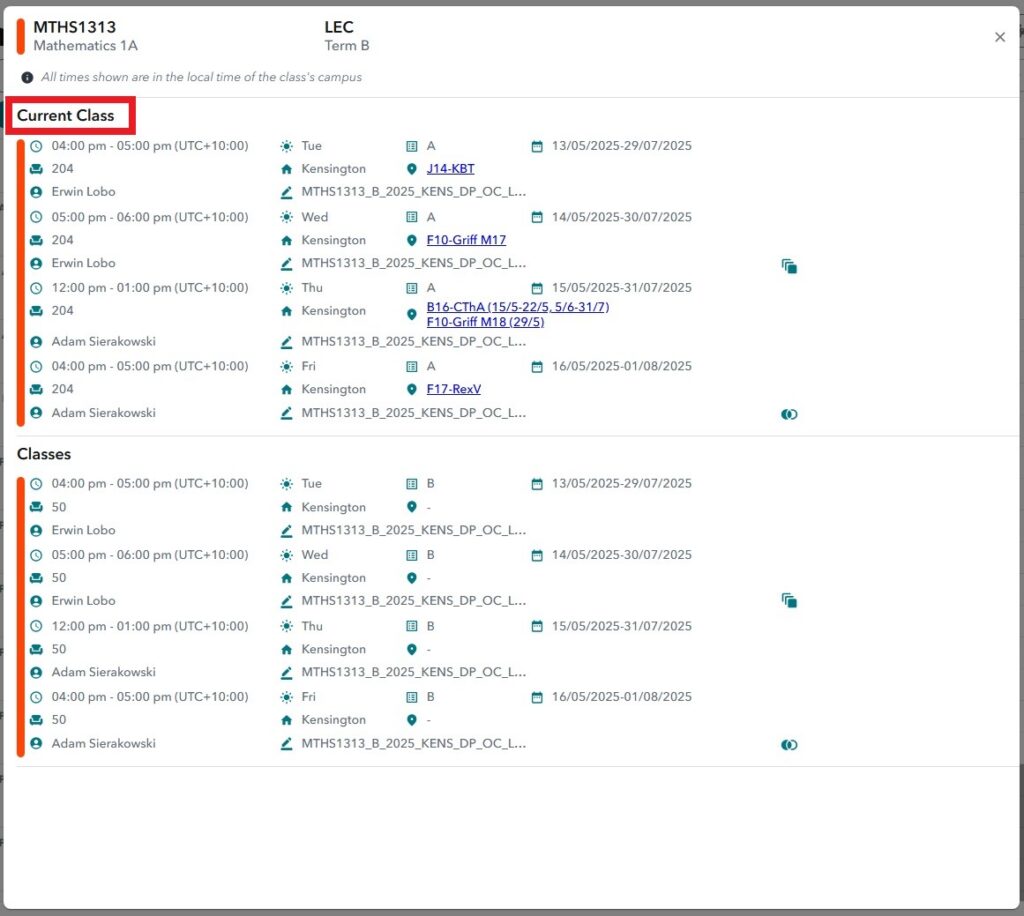
- Click on the the expand icon, to see the full details of the class. Focus on the Current Class section, which shows the details of the class you are allocated to.
- Many classes are multipart classes, meaning they may occur multiple times each week, have different teachers, or be held in different locations.
- The expanded class details may include:
- Duration of each class
- Day of the class (Monday, Tuesday, etc.)
- Class
- Weeks of the class
- Number of seats
- Campus
- Location (Mazemap link)
- Teacher
- Full class code
- The expanded class details may include:
Student Alerts
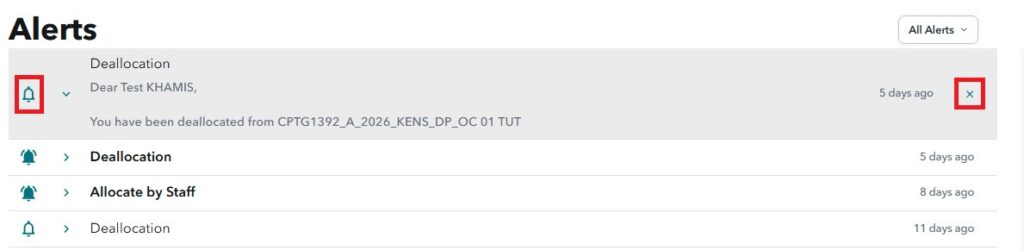
- The Student Alerts page shows all notifications related to your timetable.
- Once you click on the notification, they will be marked as ‘Read’.
- You can delete the alert by clicking the ‘x‘ at the end of the alert
Student Settings
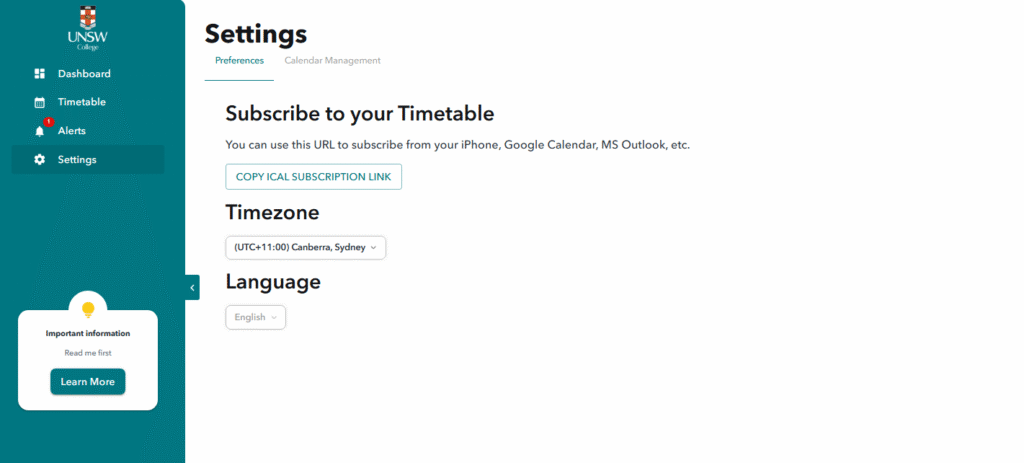
- The Settings page allows you to manage some basic timetable preferences.
- You can:
- Find your ICAL subscription link for calendar syncing.
- Change your timezone.
- You can:
- The language is fixed to English.
How to subscribe to my timetable?
- Login to your Allocate Plus Student account
- Under the Navigation Bar, click ‘Settings’
- In the Settings Page, click the ‘Copy ICAL Subscription Link’ button
- Paste the link in your personal browser to trigger the calendar subscription