

This guide explains how to select your preferred class schedule in Allocate Plus.
Note: Selecting classes in Allocate Plus only applies to Diploma and Pre-Master Program students.
1. Log in to your Allocate Plus Student account.
2. Once you login to your account, you will see the “Action Required” option with the Select button > Click the Select button
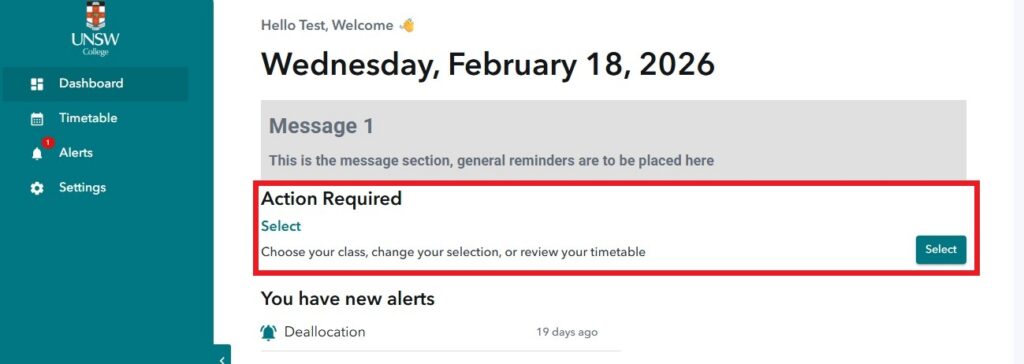
3. Once you click the Select button, you will be redirected to your timetable page
4. In the timetable page, go to your Action Pane section
5. You will see some subjects under the “Select” section. If subjects are in this section, it means you can choose your preferred schedule for those subjects.
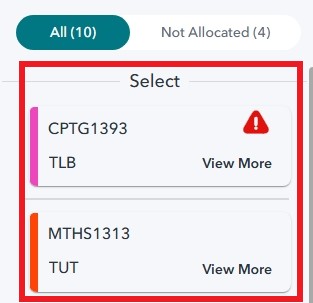
6. There are 2 ways you can select your classes:
a. Click on the subject name:
- If you click the subject name, you will see a “Select Class” section appear under the subject
- In this section, you will see the different class schedules that you can choose.
- Once you choose one, you will see one of the boxes in broken line be shaded out for a more visual idea on what time that subject is in the timetable.
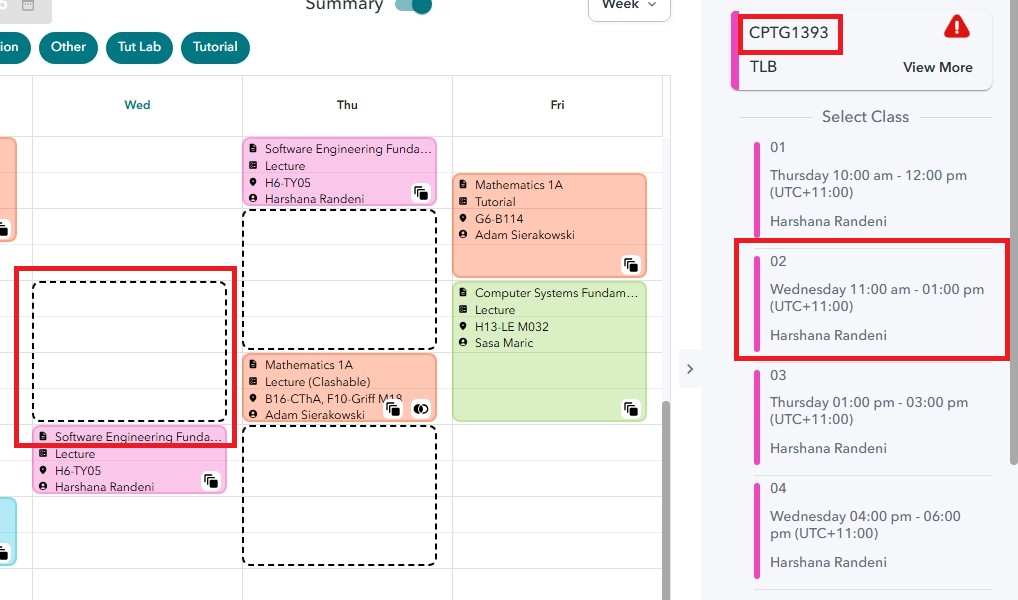
- After clicking, you will see your chosen class be placed under “Current Class” and the others will be under “Alternate Classes”
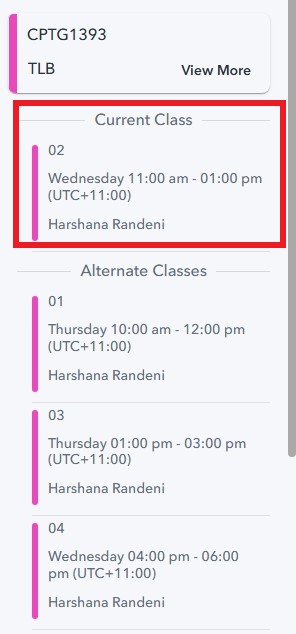
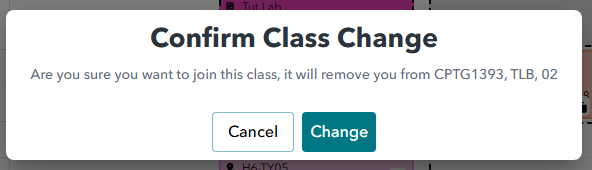
- If you want to change classes, simply click on one of the alternate classes and a prompt will appear asking you to confirm the change.
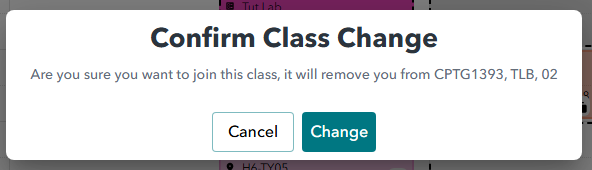
- After you confirm, that will change your current class.
b. Click on the “View More” Link:
- If you click on the ‘View More’ link in the subject a pop-up box will appear
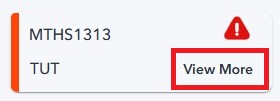
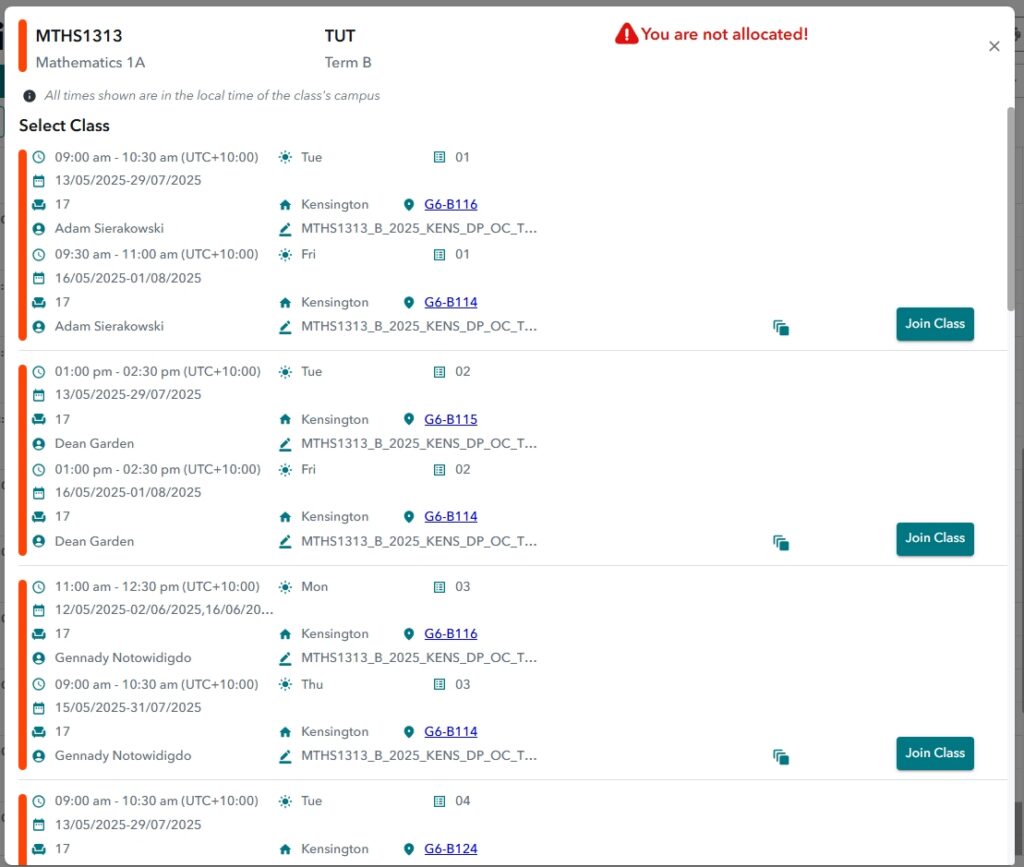
- In the pop-up box, you will see all available classes to choose from > Click Join Class for the class you prefer
- The class you have joined in will now appear under ‘Current Class’ while the others will appear under ‘Alternate Classes’
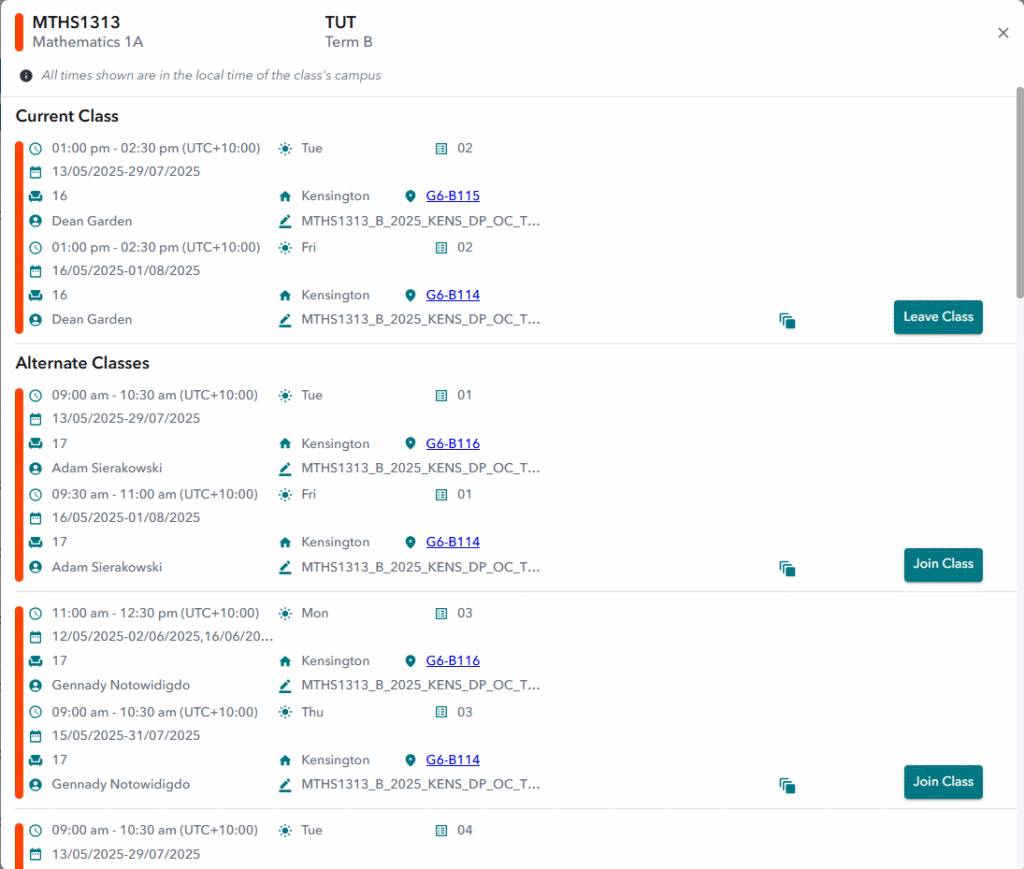
- To change the class, simply click ‘Join Class’ for any of the other classes under the Alternate Classes section and a prompt will appear asking you to confirm the change.
- You can also click on “Leave Class” but make sure you join another class.