
This guide explains how to mark your attendance in the new Allocate Plus dashboard. Please refer to the Allocate Plus Student Guide to familiarise yourself with the interface. If you have received an Attendance Warning or a Notice of Intention to Report, please refer to this guide.
Important: You can only mark your attendance during the scheduled time of your class.
To mark your attendance, log in to your Allocate Plus Student account.
There are three ways to record your attendance in the system.
Method 1: Through Upcoming Events (Dashboard)
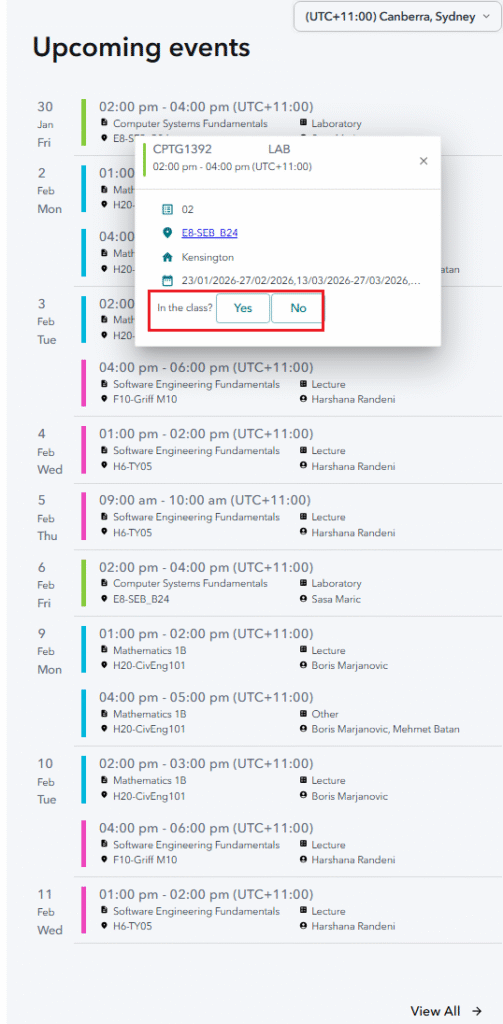
- Log in to your Allocate Plus Student account.
- On the Dashboard page, locate the Upcoming Events section.
- Find your current class listed under Upcoming Events.
- Click the class to open the Activity Details box.
- Locate the ‘In this class?‘ question in the activity details.
- Click Yes or No to mark your attendance.
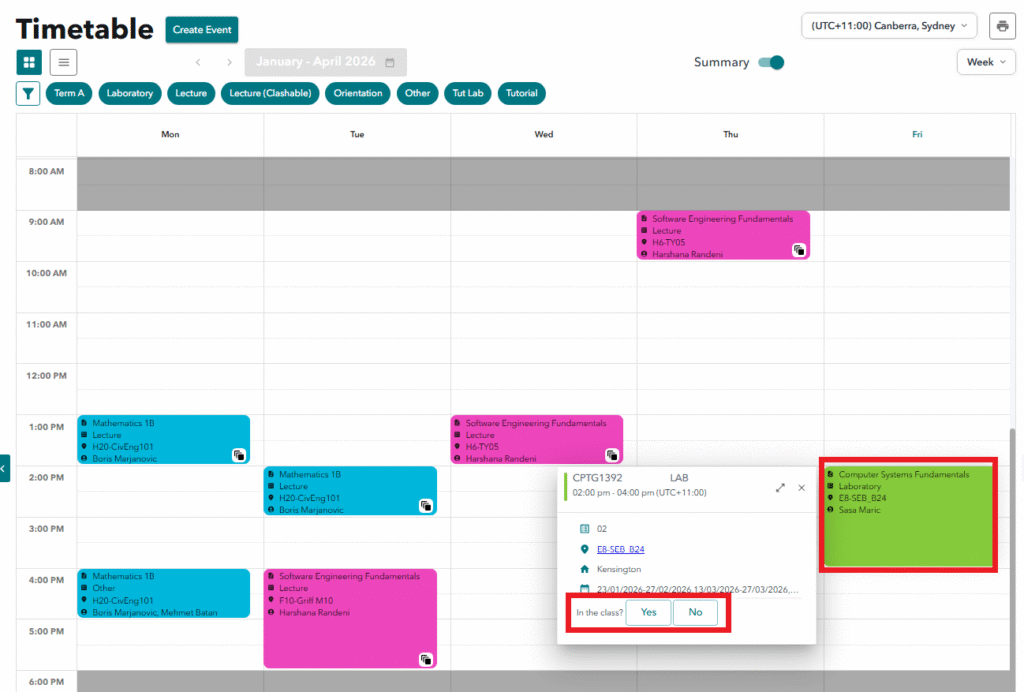
Method 2: Through the Activity Card in the Timetable
- Log in to your Allocate Plus Student account.
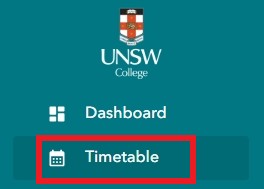
- Click Timetable in the navigation bar.
- In the Grid View, locate the Activity Card for your current class.
- Click the activity card to open the Activity Details box.
- Locate the ‘In this class?’ question in the activity details.
- Click Yes or No to mark your attendance.
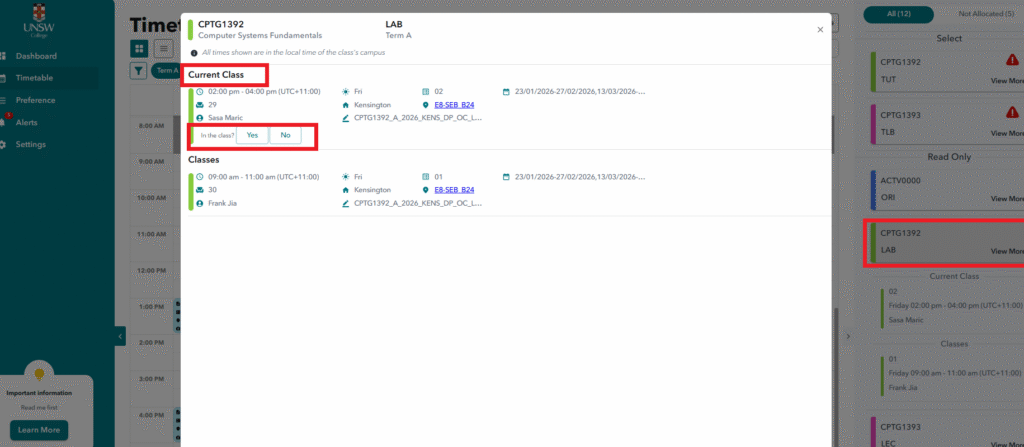
Method 3: Through the Action Pane (View More)
- Log in to your Allocate Plus Student account.
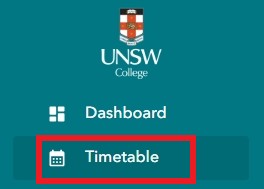
- Click Timetable in the navigation bar.
- Locate the Action Pane on the right side of the page.
- Find your subject in the list of allocated subjects.
- Click View More on the subject card.
- Locate your class under the Current Class section.
- Find the ‘In this class?’ question beside the class details.
- Click Yes or No to mark your attendance.