
Activate your UNSW College student account (gID)

Welcome to UNSW College!
The first thing you need to do is activate your UNSW College student account.
All students enrolled in the UNSW Foundation Studies Program will be allocated a Global Identity Number called a gID. The format of the ID is the letter "G" followed by six digits, for example: G1234563.
Every student is allocated a unique ID upon enrolment.
Tip
- Recommended: Please use Google Chrome as your web browser.
- Read the instructions carefully and come back to this page to read again any step if you have trouble. Follow the instructions carefully and you will activate your gID successfully.
To activate your gID account follow the 8 steps below. Easy!
-
Your school/university will provide you with your gID number.
-
Go to Password Self-Help.
-
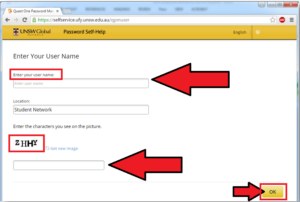
- Enter your gID as your “user name“.
- Then enter the special characters code shown on the screen.
- And then click “OK“.
-
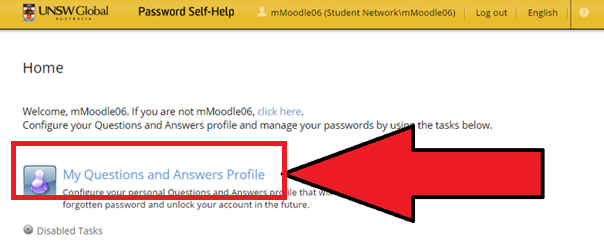
Click the “My Questions and Answers Profile” link
-
- If you have been a UNSW College student before and/or have already set up your gID
If you have already been a UNSW College student and have already set up your gID account – then use THAT password, the one you already set/used. If that doesn’t work, you can try the temporary password based on your date of birth, as described for new students below. - If you are a new student in UNSW College
You have a temporary password. You will change it soon – it is only for logging in this one time, so you don’t need to remember it or write it down.This temporary password is based on your date of birth. It is in the format: UnswYYYYMMDD – i.e. a capital (big) “U“, then lower-case (small) “nsw” then Year + Month + Day – with 4 numbers for the year, 2 numbers for the month, 2 numbers for the day.For example:
- Someone born on the 3 May 1995 would have a password Unsw19950503
- Someone born on the 19 December 2001 would have a password Unsw20011219
- Someone born on the 31 January 1997 would have a password Unsw19970131
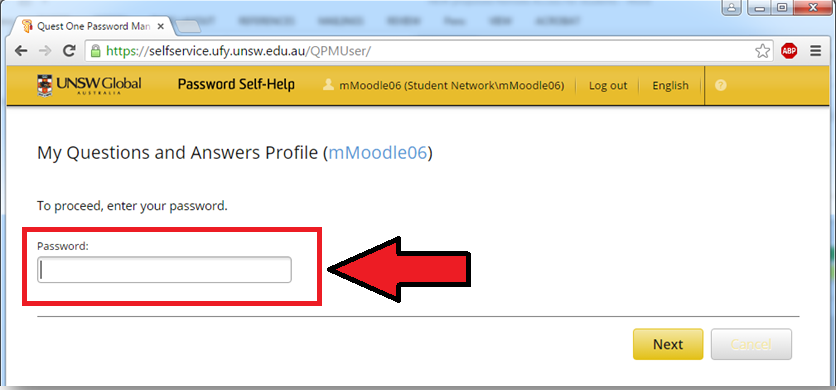
Enter your password and then click “Next”
- If you have trouble with your password and cannot log on:
If you have trouble with this step:- Please first re-read steps 1-4 above
- Make sure you are on the right webpage
- Check you have the right gID
- Check that you are following the temporary password instructions exactly (“Unswyyyymmdd” format).
If you still have problems we may have made a mistake (such as have your date of birth wrong in our system), so please contact your teacher for assistance.
- If you have been a UNSW College student before and/or have already set up your gID
-
Tips:
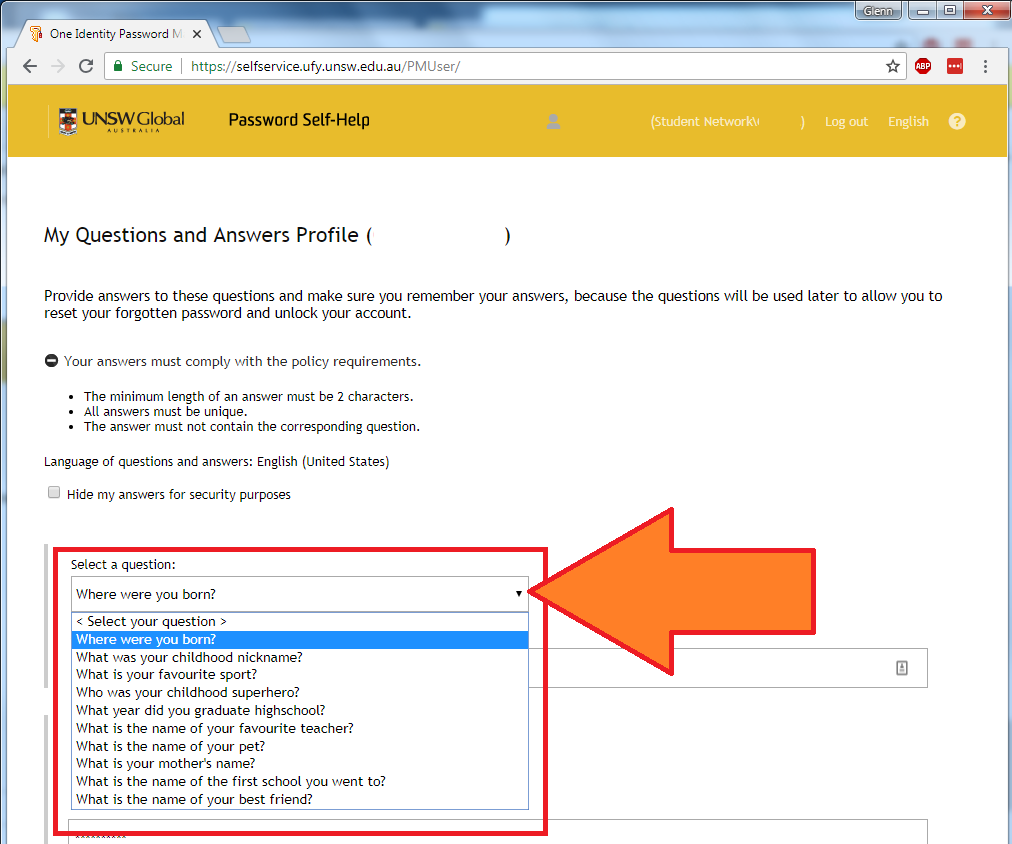
- These are your special, secret security questions – you can use the answers to access your account if you forget your password.
- Make sure you enter answers that you will remember later. They don’t have to be true, but they must be something you will remember!
- Choose questions/answers that someone else cannot easily guess.
- Spelling is important, but case (capital/big and lower/small) letters does not matter.
If you are a new UNSW College student then:
- Select and answer three (3) special questions.
- Then enter your personal email address at the end, and click “Next”.
If you have been a UNSW College student before and/or have already set up your gID special questions:
- Check the questions and make sure still remember your answers. If you are not sure you can update the answers now.
- Confirm or enter your personal email address at the end, and click “Next”.
-
This step ONLY applies to new UNSW College students/first time activating your gID.
If you have been a UNSW College student before and/or have already set up your gID password go to Step 8.
If you are a new UNSW College student then:
Your password must be at least 8 characters in length – and no more than 16 characters in length (i.e. 8-16 characters long).
It must contain 3 or 4 of these four types of characters:
- upper case letter (eg: ABCD)
- lower case letter (eg: efgh)
- a number (eg: 123)
- a symbol (eg: $ % # *)
It must NOT contain:
- your name (neither your first name nor your last name)
- your gID or zID number
- your date of birth
It must NOT be one of your last 12 passwords (if you are resetting/changing your password).
The following are some examples only (do NOT use these).
They are only here to help you understand the above password rules.
Examples of correct passwords. DO NOT use these examples:
✔ Yesterday1 (not a good password, but it does meet the rules)
✔ QwertyA1 (not great, but does meet the rules)
✔ Qwerty$$ (not great, but does meet the rules)
✔ QWerT1#& (this is OK)
✔ Qwerty5023! (this is OK too)
✔ Qd4tp*Ts (good – but might be hard to remember!)
Examples of incorrect passwords:
✘ 12345678 (only 1 type – numbers)
✘ password (only 1 type – lower case)
✘ Password (only 2 types – lower and upper case)
✘ Qwert1@ (only 7 characters long!)
✘ Qw1 (only 3 characters long!)
✘ John1234 (if your name is John!)
✘ Light$@! (if your family name is “ Li ” because
that is part of the word ” Li ght”!)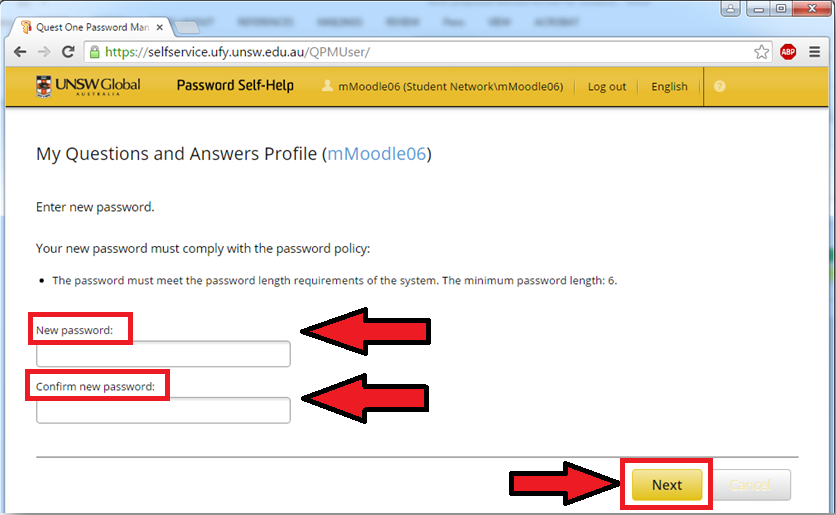
-
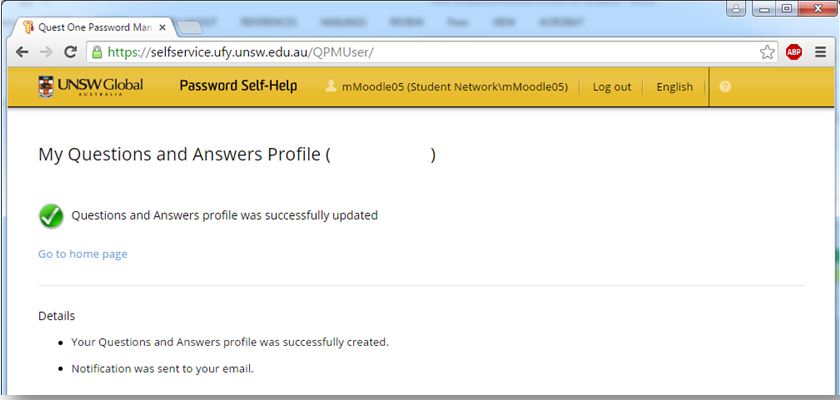
- You should get a message the picture below.
- You can now close the “Password Self-Help” page.
UNSW College delivers its Foundation Studies, Academic English, Diplomas, and Pre-Masters Program, under CRICOS Provider Code 01020K; TEQSA Provider ID: PRV13020 (Institute of Higher Education).
UNSW College delivers its Applied Degrees under TEQSA Provider ID: PRV13020 (Institute of Higher Education).
UNSW College also delivers UNSW Diplomas on behalf of UNSW Sydney under CRICOS Provider Code 00098G; UNSW Sydney TEQSA Provider ID: PRV12055 (Australian University).
See unswcollege.edu.au/esos for more information.
© 2026 UNSW Global Pty Limited.